
You have a logo on your computer. Maybe it is a JPG from your client's website. Maybe it is a PNG of your child's artwork. You want to stitch it onto a shirt using your Brother machine. You search online, find a "free converter," upload your image, and download a PES file. You load it into your machine, hit start, and watch in horror as thread snaps, fabric puckers, and the design looks like a tangled mess. This scene plays out every day. The problem is not your machine. It is the file. Learning how to Convert Image To PES File Free the right way saves time, thread, and frustration.
Here is the truth that most beginners learn the hard way: converting an image to an embroidery file is not like changing a Word doc to a PDF. It is a process called digitizing, and it requires real work . But do not worry. You have options, from completely free software to professional services that cost less than lunch. Let me walk you through everything.
Why You Cannot Just "Convert" a JPG to PES
Before we dive into solutions, you need to understand why this is harder than it seems. A JPG or PNG is a grid of colored pixels. It shows what the design looks like, but it contains zero information about how to create it with thread .
A PES file, by contrast, is a set of instructions for your Brother machine. It tells the machine where to put every needle penetration, what direction each stitch should go, how dense the coverage should be, and when to change thread colors .
Free online "converters" that promise instant JPG-to-PES transformation do none of this. They simply append an embroidery file extension to your image, creating what amounts to an empty shell . Your Brother machine attempts to read stitch data that does not exist, resulting in error messages, frozen screens, or worse—damaged needles from attempting to execute nonsensical commands.
Free Option 1: Ink/Stitch with Inkscape (The Best Free Solution)
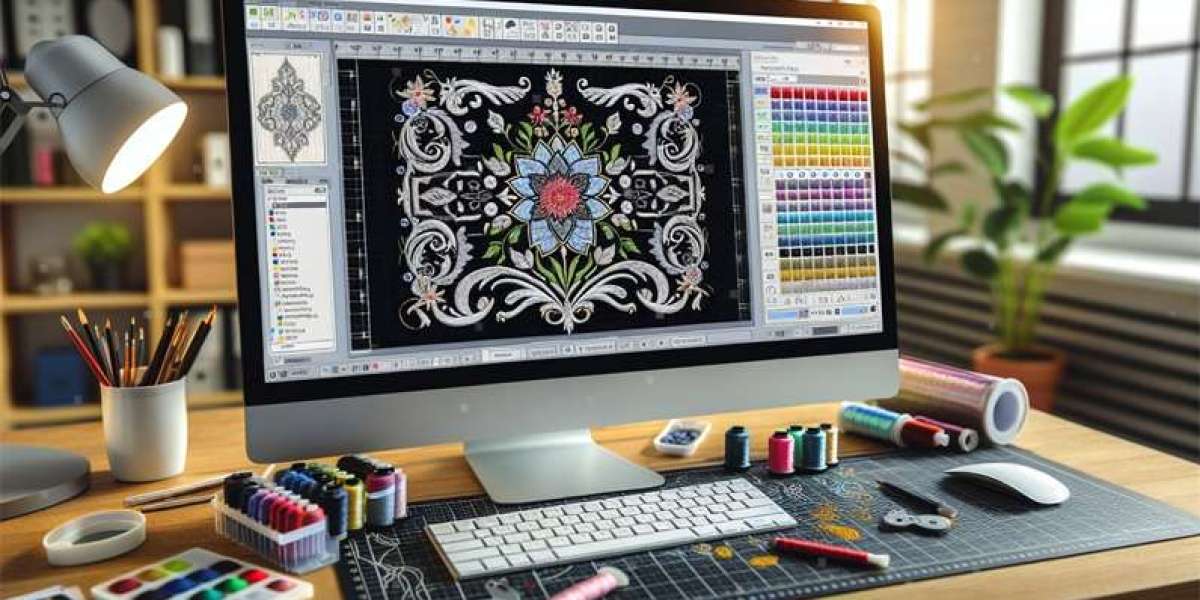
If you want to convert images to PES files for free and get professional results, Ink/Stitch is your answer . It is an open-source extension for Inkscape, a free vector graphics program. Together, they give you powerful digitizing capabilities at zero cost.
What you need:
Inkscape (free download from inkscape.org)
Ink/Stitch extension (free from inkstitch.org)
How it works:
Install Inkscape first, then add the Ink/Stitch extension
Import your image (JPG, PNG, or vector file)
Use Inkscape's tracing tools to convert pixels to vector paths
Select paths and use Ink/Stitch's Params window to assign stitch types
Adjust density, underlay, and stitch angles
Export as PES or other formats
What it handles well: Satin shapes, text, logos, geometric designs with clear boundaries. Users consistently report excellent results for these applications .
What it struggles with: Photorealistic images, complex gradients, and automated conversion of detailed photographs. Small text below 4mm loses definition .
The trade-off: The learning curve is genuine. Expect to spend several hours on tutorials before producing your first successful design. But for zero cost, your time investment pays off .
Free Option 2: Online Converters (Use with Caution)
Several websites offer free JPG to PES conversion directly in your browser. Services like OnlineConvertFree and others let you upload, click, and download in minutes .
The good: These tools are genuinely free. No registration required. Files are SSL-encrypted during upload and automatically deleted after 24 hours . For simple designs with bold shapes and few colors, they can produce usable results.
The bad: These tools use basic auto-digitizing algorithms without refinement . They cannot handle complex images, gradients, or fine details. The resulting files often have incorrect density, missing underlay, and poor stitch paths .
The ugly: When you upload client logos to unknown websites, you risk your intellectual property . You have no idea what happens to those files after conversion.
Verdict: Online converters work for extremely simple, personal projects where quality does not matter. For anything serious, avoid them.
Free Option 3: SophieSew and Embrilliance Express
Two other free options deserve mention.
SophieSew offers manual digitizing for Windows users. It is feature-rich for a free program and allows stitch-by-stitch customization . Development has slowed, but it remains usable for basic designs.
Embrilliance Express focuses on text-based embroidery. It is perfect for monograms and names, runs on both Windows and Mac, and lets you customize lettering before exporting to PES .
The Reality Check: When Free Is Not Enough
Here is the honest truth. Free tools like Ink/Stitch require significant time investment to master. If you digitize frequently and enjoy learning, they are fantastic. But if you need a file quickly for a client, or if your design is complex with fine details, free tools may frustrate you .
Professional digitizing services exist for exactly this reason. Companies like Absolute Digitizing, Digitizing Buddy, Cool Embroidery Design, and Absolute Digitizer employ expert digitizers who create perfect PES files in hours.
How it works:
You upload your image to their website
You specify PES format and your machine type
You provide size and fabric information
A professional digitizer manually creates your file
You receive it within 2 to 24 hours
Cost: $10 to $15 for most designs. Rush options cost slightly more.
Why this makes sense: At $15, you save hours of learning and frustration. The file runs perfectly the first time. No thread breaks. No puckering. No wasted garments. For businesses, this is the smartest investment .
Step-by-Step: Preparing Images for Best Results
Whether you use free software or professional services, these steps improve your outcomes.
Step 1: Start with High Resolution
Use images at least 300 DPI at your final stitch size . Low-resolution images force the software to guess at details, and guesses lead to blurry embroidery.
Step 2: Simplify Colors
Reduce your image to 2-6 distinct colors maximum . Every additional color becomes a thread change that extends stitch time and complexity.
Step 3: Remove Backgrounds
Backgrounds waste stitches and confuse digitizing software. Crop tight to your design .
Step 4: Know Your Size
Left chest logos run 3 to 4 inches wide. Hat fronts run about 2.2 inches tall by 4.5 inches wide. Set your file to final size before digitizing.
Step 5: Note Your Fabric
Stretchy knits need different settings than stable wovens. Tell your digitizer or adjust software parameters accordingly .
Common Beginner Mistakes
Mistake 1: Thinking conversion = digitizing. Changing a file extension does nothing. You need actual stitch creation .
Mistake 2: Using photos directly. Photographs with gradients and shading create impossible scenarios for automated systems. Simplify to line art first .
Mistake 3: Ignoring test stitches. Always run a test on scrap fabric before stitching final garments .
Mistake 4: Tiny text. Design elements smaller than 4mm lose definition. Enlarge text or simplify .
Which Path Should You Choose?
Your choice depends on your goals.
Choose Ink/Stitch if:
You enjoy learning new skills
You have time to master the software
You digitize frequently
You want complete creative control
Choose professional services if:
You need files quickly
Your designs are complex
Quality consistency matters most
You prefer focusing on stitching, not software
Choose online converters only if:
You have an extremely simple design
Quality does not matter
You understand the risks
Conclusion
Converting a logo or photo to a PES embroidery file does not have to be complicated or expensive. Free tools like Ink/Stitch with Inkscape give you professional capabilities at zero cost, but they require time to learn. Online converters offer instant results but often disappoint with poor quality and security risks. Professional digitizing services deliver perfect files in hours for $10-15, making them the smart choice for most users.
Whichever path you choose, remember the fundamentals. Start with clean, high-resolution artwork. Simplify colors. Specify correct size. Note your fabric type. Test before production.
Your Brother machine is capable of beautiful work. Feed it properly created PES files, and it will reward you with smooth stitching and professional results, project after project.